
MCP Server Prompt
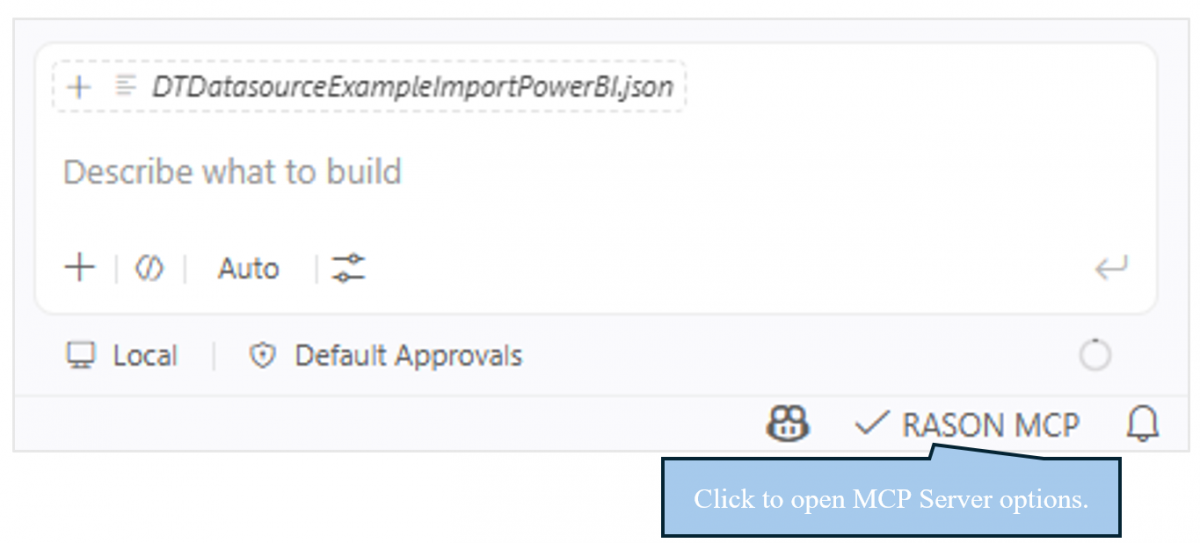
In addition to solving and exporting models, RASON Desktop includes access to Frontline’s MCP Server for AI-assisted model guidance. The MCP Server connects GitHub Copilot Chat to RASON-specific modeling resources—examples, templates, diagnostics, and solve-result interpretation—so you can get AI-assisted help while building and reviewing RASON models. Click View -- Chat in Visual Studio Code to open the chat pane on the right.
Using the Prompt
Frontline’s MCP Server Prompt lets you ask questions or enter prompts while working in RASON Desktop. When a model file is open, the prompt can use that file as context to help answer questions about model structure, results, errors, or possible changes. Use the prompt box to enter questions for the MCP Server. After a response is returned, you can act on it using the controls below.

- Retry — Run the request again to get a fresh response.
- Copy — Copy the returned response to the clipboard.
- Helpful / Not helpful — Provide feedback by marking the answer as helpful or not helpful.
What the MCP Server Provides
More than a REST API wrapper, the MCP Server gives Copilot Chat full access to RASON’s modeling, analysis, and solving capabilities, including:
| Capability | Description |
|---|---|
| Example library | A searchable library of nearly 200 example models you can reference while building your own. |
| Templates | Templates that guide model generation for common modeling patterns. |
| Structural analysis | Analysis of the open model’s structure to help identify issues and opportunities. |
| Result interpretation | Help interpreting solve results, including status, objective values, and warnings or errors. |
Example search, templates, model analysis, and RASON information work immediately.
Note: The status bar includes additional MCP-related controls. To use cloud solving and model management through the MCP Server, set your token with
RASON: Set Auth Token.