
Solving Models using the RASON Desktop Extension
The RASON Desktop workspace provides a single environment for editing, solving, and reviewing RASON models inside Visual Studio Code. This page describes the main areas used when working with an open model, the available solver modes, and the steps to solve a model and view its results.
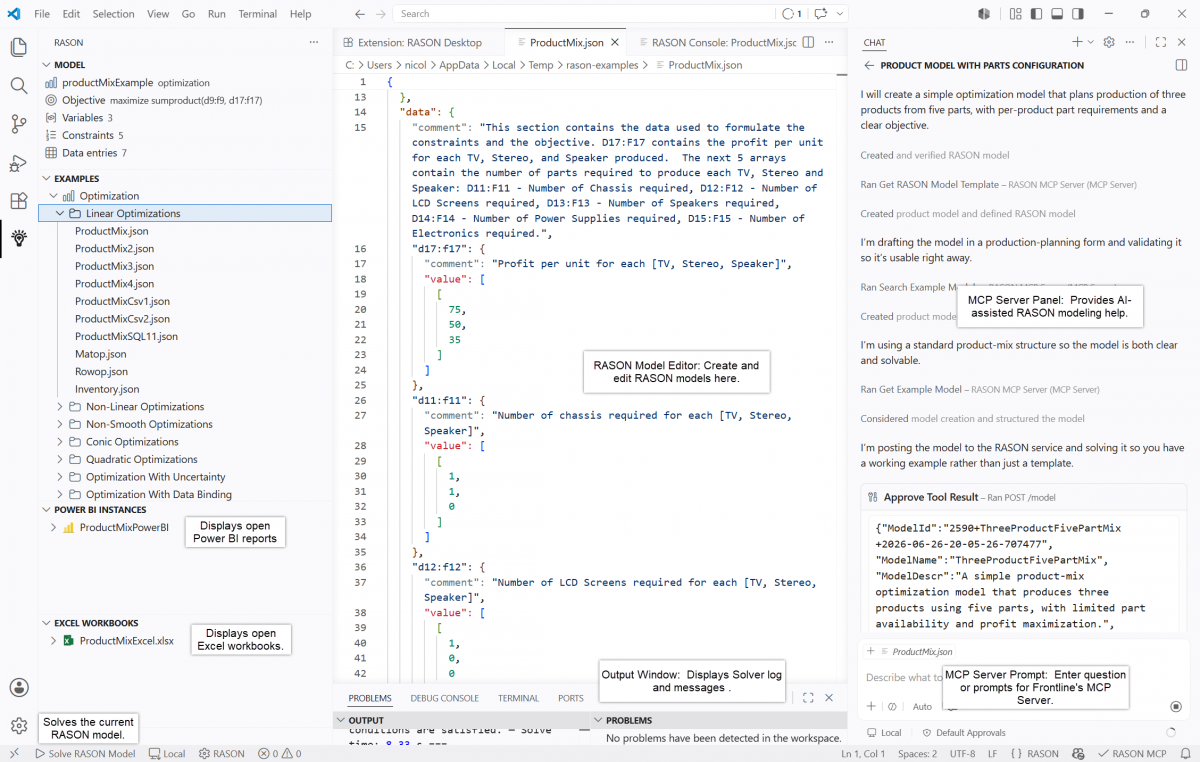
Workspace Areas
The following areas are used when developing and solving a model in the RASON Desktop extension.
| Area | Description |
|---|---|
| Power BI Instances | Displays open Power BI reports that RASON Desktop can connect to. These reports are available when reading data from Power BI, writing results back to Power BI, or exporting a RASON model. |
| Excel Workbooks | Displays open Excel workbooks that RASON Desktop can connect to. These workbooks can be used as data sources, output destinations, or export targets. |
| RASON Model Editor | Displays the open RASON JSON model. This is where you review and edit model sections such as variables, data, constraints, objectives, and settings. |
| Output Window | Displays the solver log as the model is being solved, including progress messages, solver status, objective values, warnings or errors, and the final solution status. |
| Solve RASON Model | Runs the currently open RASON model. Use this command after opening or editing a model to validate the formulation and generate results. |
| MCP Server Panel | Provides AI-assisted RASON modeling help. It can interpret model results, answer questions about the open model, and provide guidance while you work. |
| MCP Server Prompt | Where you enter questions or prompts for Frontline’s MCP Server—model formulation, results, errors, or possible changes to the current model. |
Solver Modes
Three solver modes are available from the status bar or through the Toggle Solver Mode command. Cloud solving requires an authorization token, set via RASON: Set Auth Token.
| Solver Mode | When to Use It |
|---|---|
| Local | Uses the bundled solvers on your machine. This is the default mode and requires no cloud connection. |
| Cloud (Synchronous) | Submits quick-running models—those expected to solve in under 30 seconds—to rason.net and waits for the result in the current session. |
| Cloud (Asynchronous) | Submits larger or longer-running models to the cloud; RASON Desktop polls for completion, letting long solves continue without an immediate response. |
Solving a Model
After opening or editing a model, solve it and review the results using the steps below.
- Click Solve RASON Model in the lower-left of the extension, or run Solve RASON Model from the Command Palette.
- To stop the solve before it completes, click Stop Solve.
- The Console pane appears and displays information about the solve process and the results being prepared for export. On success, it shows a message such as “Solver found a solution. All constraints and optimality conditions are satisfied.”
- Open or save the results in JSON by clicking Open Result JSON or Save Result JSON.
- Review the outcome under Solve Results, where the returned objective value, variable values, and solution status are shown.
- Use the Export buttons at the bottom of the console to export the results to Power BI, Excel, or a CSV file.

Note: When a model is executed in the RASON Desktop extension, the solve is performed on the RASON.net server—the model and its data are sent to the server, solved, and the results returned to the extension. This is true even when the solver mode is set to Local.